
Start with the Body: Ergonomics and Comfort in XR

Your body still exists when the headset goes on. Virtual actions create real-world strain, so good XR starts by respecting limbs, posture, and balance.
Designers who come from flat screens often overlook this. If an app ignores arm reach or neck angle, discomfort appears fast. A single desk collision proves that point.

Think of arranging a chair or monitor. XR can place objects anywhere, so it is easy to create inconvenience without noticing. Ask, “How does this feel for an actual person?” every time.
Bodies differ. Some users sit in wheelchairs, others tire quickly, and reach varies. Welcoming design starts with that truth.

Seated, Standing, and Room-Scale: Designing for Every Posture
In seated XR you work inside the easy reach of a sitter. Keep key menus just ahead, like the space above a laptop keyboard. Less leaning means more time in-app.

Standing sessions allow slightly higher or wider actions. Still, hold most tasks between hip and eye level. Forcing arms overhead invites fatigue.

Room-scale XR lets people walk or kneel, yet furniture and pets stay real. Offer clear safety cues and avoid repetitive squats or big jumps unless truly fun.

Reach, Distance, and Interaction Zones
Most controls should sit an arm’s length away. Interaction zones—about – m from the chest and shoulder-width—keep actions easy.

Picture a bubble from waist to nose, elbow to elbow. Place menus there. If content sits farther, add pull-to-me mechanics.

Overextension causes sore shoulders quickly. Test with your own arms—tightness after minutes signals a design flaw.
Turning the head too far also tires users. Keep vital info in front and move extras to the edges.

Acceleration, Rotation, and Motion Sickness
Motion sickness arises when eyes say “moving” but the inner ear feels still. Rapid acceleration and sudden spins are the worst offenders.
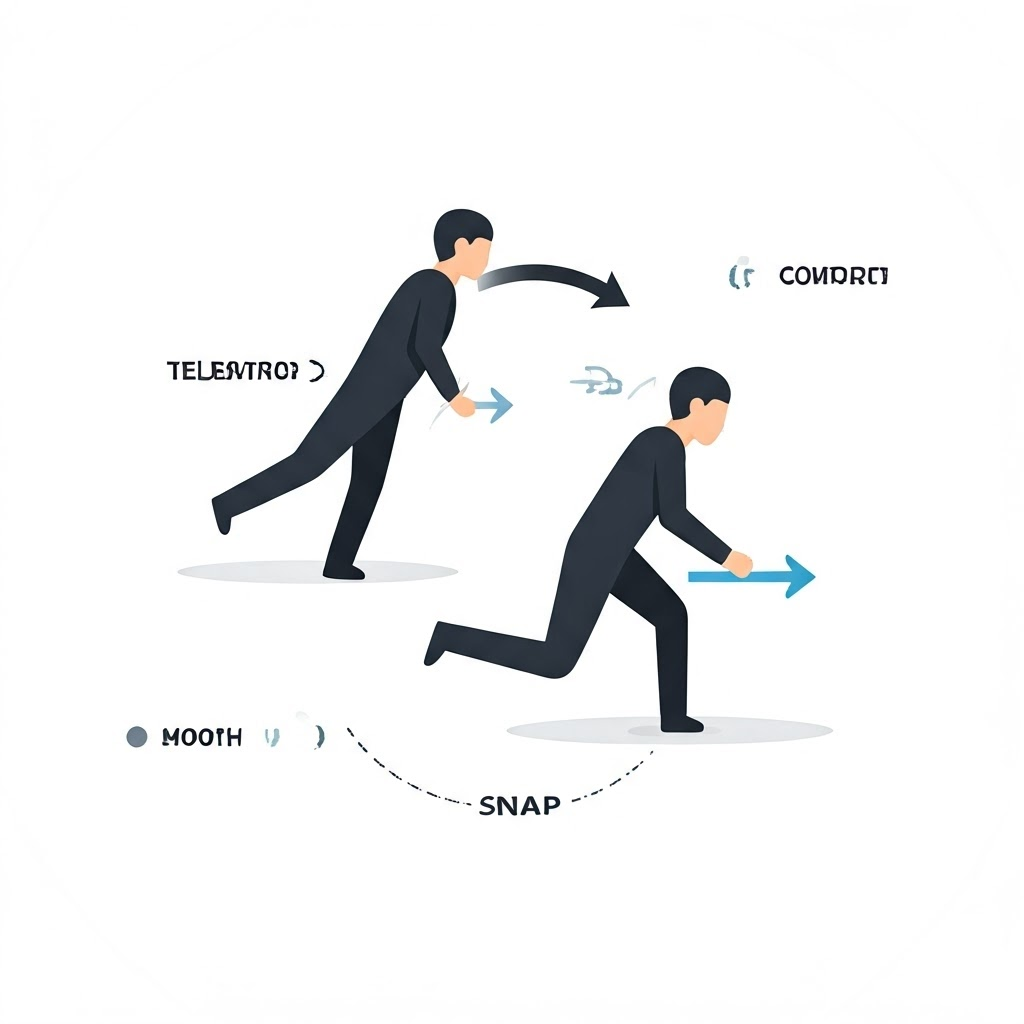
Most users handle only gentle glides or snap turns of –. Offer comfort settings so everyone chooses their pace.

Add visual anchors—a virtual nose, cockpit frame, or horizon—to steady the brain. Never link camera moves to head movement unless the body truly follows.

If half your audience feels queasy, the visuals will not save the experience. Keep motion gentle and optional.
Summary for Real People
Design with the body first. Place actions within easy reach, move users gently, and always give comfort choices. A few centimeters or seconds can decide whether someone stays or quits. Test in a headset and trust how your own body feels.
