
The Journey Begins: From Address Bar to Webpage

The Address Bar: Your Portal to the Web
When you type www.example.com into the browser’s address bar, you fill out a digital envelope. The URL tells the browser where to go and how to get there. Each part of the URL has a task: the protocol (http:// or https://), the domain name, and any path after the slash.
Your browser then tries to interpret what you typed—even fixing small typos or adding missing bits. But knowing the domain is only step one. The browser still needs the exact network address of the server that hosts the site.

Finding the Server: DNS and IP Addresses
Think of the Domain Name System as the web’s phonebook. You hand it a domain, and it returns an IP address. First, the browser checks its own memory. If it doesn’t know, it asks the operating system, the router, the ISP, and finally a public DNS server.
This lookup usually takes only milliseconds. Without DNS, you would need to remember long strings of numbers for every site, which would make browsing feel like solving math problems instead of exploring pages.

Making the Request: HTTP and HTTPS
With the IP address in hand, the browser contacts the server using HTTP or its secure version, HTTPS. It sends an HTTP request that politely asks for the page. If you see https://, the browser first creates an encrypted tunnel with TLS, blocking eavesdroppers.
HTTPS is now standard. Modern browsers even warn you if a site isn’t secure, reminding you to stay cautious while browsing.

Making the Request: HTTP and HTTPS
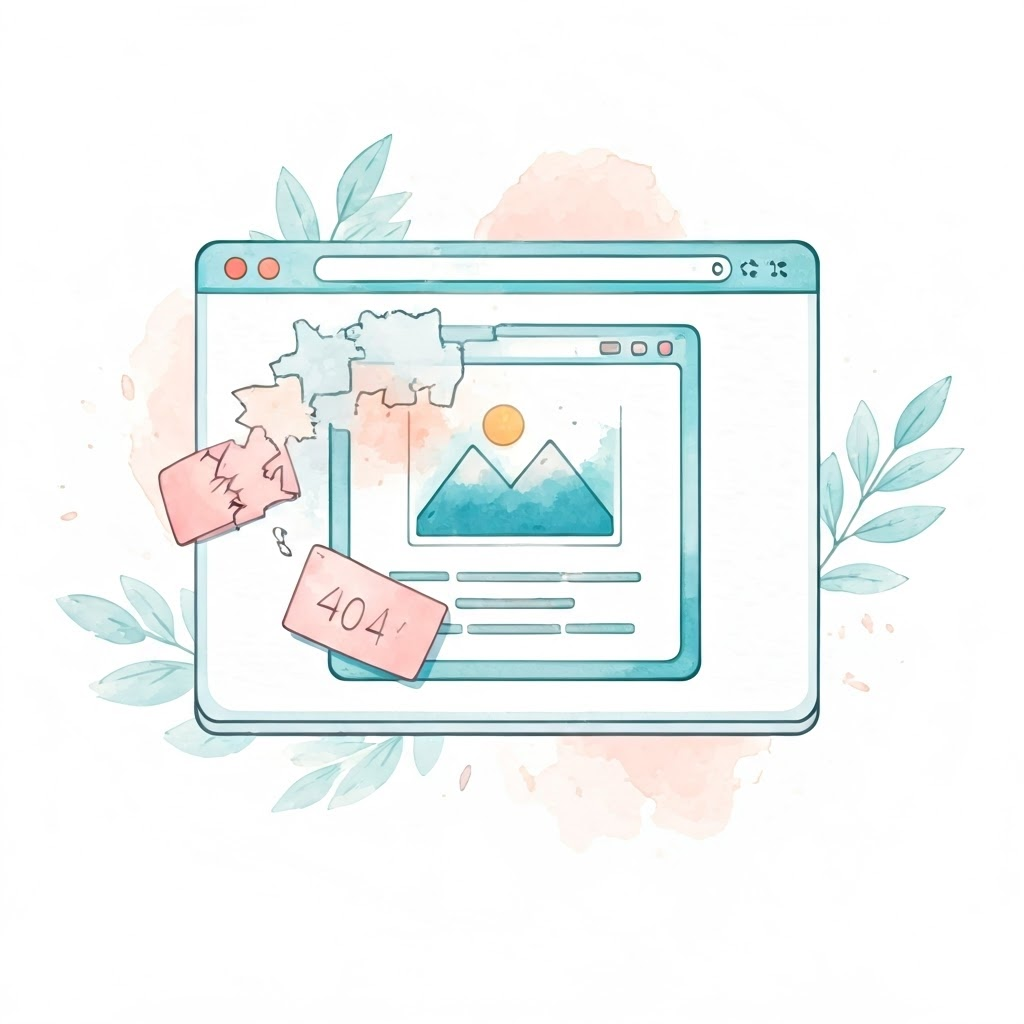
The server reads the request and responds with an HTTP status code. A 200 OK means success and usually includes the main HTML file. A 404 Not Found signals the page is missing. The HTML is only the start; more files still need to arrive.

Getting the Goods: Receiving HTML and Other Resources
The HTML lists every extra resource the page needs—CSS for style, JavaScript for interactivity, and media like images or videos. Your browser begins requesting these files, often in parallel, so the page loads efficiently. Important files download first to speed up what you see.
Getting the Goods: Receiving HTML and Other Resources
If any file fails, the browser logs a 404 for that item but keeps assembling the page. You might miss an image or lose a button’s function, yet the site still works. By the time you click or scroll, your browser has completed a rapid series of tasks—address lookup, DNS query, HTTP exchanges, and resource fetching—to make the web come alive in seconds.
